
Screen Time - Parental Control
Parental Control App by Screen Time LabsParenting
3.09.35K Reviews
- Version
- 3.11.71
- Installs
- 1.00M
- Age Rating
- Everyone
Screenshots
Our Review of Screen Time - Parental Control
 Analysis by Appyee
Ever felt like your kids are on their devices more than they’re in the real world? I know I have. Enter Screen Time - Parental Control, an app that promises to restore balance in your home by giving you control over your children's screen usage. Here's my deep dive into how it works and whether it’s worth your time.
Why a screen-time limit can change the daily routine
For me, the most useful idea behind a parental-control app is not watching every tap; it is making a household rule easier to follow consistently. Screen Time is a parenting app from Parental Control App by Screen Time Labs, built around tools such as screen-time blocking, location tracking and a child lock. Its central appeal is the ability to turn a broad agreement like “less phone time on school nights” into a limit the family can actually apply.
That distinction matters. A conversation can set expectations, but it can be hard to enforce them when a child asks for “five more minutes” every evening. A device limit can take some of that negotiation out of the moment, provided the parent and child have talked about the rule beforehand. I would treat the app as support for a family agreement, not as a substitute for explaining why the boundary exists.
Screen Time has been available since 2013, and its current version is 3.11.71. It is free to download, with in-app purchases ranging from $1.52 to $49.99 per item. The app is rated for Everyone and requires Android 7.0 or later on Android. Its average rating is 3.1 from about 49,000 ratings, alongside roughly 9,400 written reviews and more than a million installs. Those figures suggest a widely tried app, but the modest average is a useful reminder to approach it with realistic expectations rather than assuming every family will find setup and day-to-day control seamless.
Getting Started with Screen Time
First off, installing Screen Time - Parental Control is a breeze. Available for both Android and iOS, all you have to do is download, sign up, and you’re ready to go. The app offers a free trial, which is a neat way to give it a spin before committing to any subscriptions.
Set expectations before setting limits
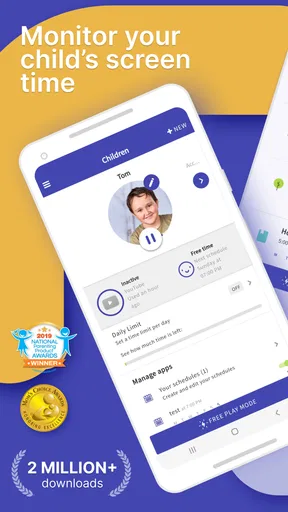
Once you’re in, the user interface is pretty intuitive. You don't have to be a tech wizard to navigate through the settings. Everything is laid out in a straightforward manner, allowing you to set up device restrictions, monitor usage, and even block certain apps or websites effortlessly.
I would still avoid turning on restrictions as a surprise. A child who knows that a device will pause at a predictable time has a chance to save work, finish a message, or choose an offline activity first. That small step can prevent the limit from feeling like a sudden punishment. It also gives parents a natural way to explain exceptions, such as a school task that needs a little extra time.
Features That Stand Out
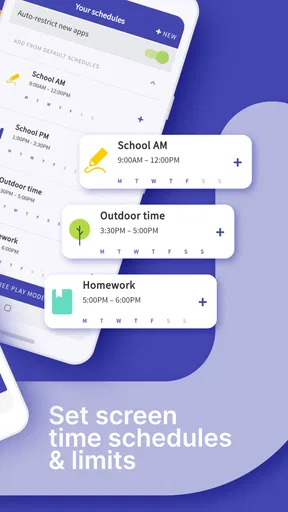
One of the major highlights for me is the ability to set daily screen time limits. You can customize how much time your child spends on their device each day, and when the time's up, the device locks automatically. It’s like having a digital babysitter. The app also lets you allocate time for specific apps, which is perfect if you want to encourage more educational app use.
The practical benefit of app-specific time is that it gives parents more choice than a single all-or-nothing allowance. If a child uses a device for both a learning activity and entertainment, a household can think about those uses separately rather than treating every minute as identical. I would begin with only a few clear rules: too many small limits can become difficult to explain and maintain, and they can turn a simple boundary into a daily argument about settings.
Another feature that caught my eye is the ability to pause devices. Imagine this: dinner is ready, and the kids are glued to their screens. With a simple tap on your device, you can pause their screens, bringing them back to the table in record time.
A pause is most helpful when it is used for a specific transition, not as a constant remote threat. For example, a parent might use it when dinner is ready or when it is time to leave the house, while a regular schedule handles the predictable end of leisure time. That division makes the app easier to live with: planned rules do the routine work, and the pause is there for the occasional moment when the family needs everyone’s attention.
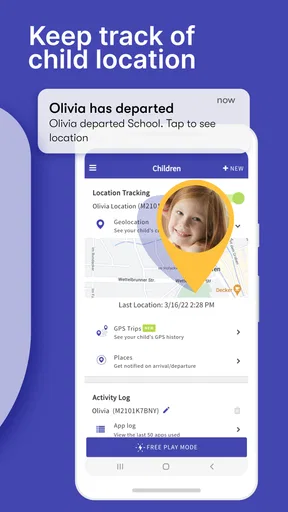
The location tracking feature is also a nice touch. While it’s not about spying, it does give peace of mind knowing where your kids are, especially if they’re using their devices outside the home.
How it fits into an ordinary school day
One realistic routine would be a child arriving home, using a phone for a set amount of recreational time, and then putting it aside for homework and dinner. The parent can use limits to make the agreed boundary more predictable, while checking usage reports later to see whether the plan matches the child’s actual habits. If an app is taking up more time than expected, that can start a conversation about whether it is helping, relaxing, or simply filling every spare moment.
I would not use a report as a scorecard or assume that a large amount of time automatically means a problem. A device may be used for different reasons, and the useful question is whether it is crowding out sleep, schoolwork, family time or other activities. Reports can help a parent notice patterns; they cannot supply the context or decide what a healthy balance should look like for that child.
Setting Boundaries and Encouraging Breaks
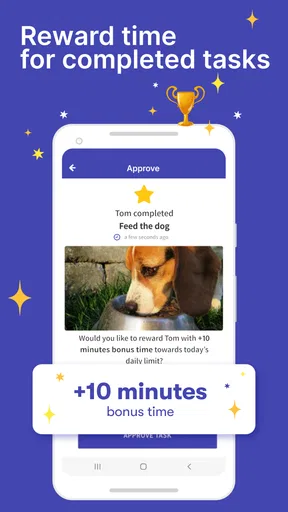
Beyond just setting boundaries, Screen Time - Parental Control encourages kids to take breaks. The app has a rewards system where kids can earn extra screen time by completing tasks or chores. It’s like turning screen time management into a game, which is a win-win for everyone involved.
Rewards can work well when the task is clear and the extra time is modest enough to fit the family’s existing rules. I would be cautious about making every chore a transaction, though. If children come to expect a device bonus for every ordinary responsibility, the system can create more bargaining rather than less. It is better as an occasional incentive that reinforces a routine than as the only reason to help at home.
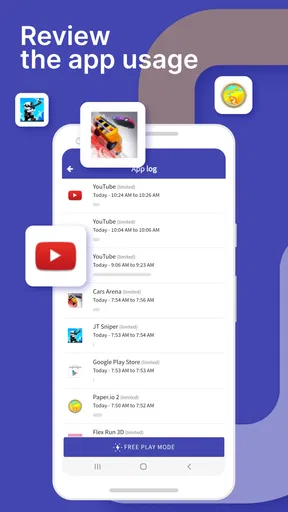
The app also sends you detailed reports about how your child is using their device. This includes which apps are used the most and how much time is spent on them. It’s eye-opening, to say the least, and really helps in understanding and managing digital habits more effectively.
For a useful review of those reports, I would look for a pattern over several days rather than reacting to one busy afternoon. A spike might reflect a particular need or an unusual schedule, while a repeated pattern is more worth discussing. This is one place where a parental-control app differs from a basic timer: it can help a parent ask a more informed question, though it still cannot replace a calm conversation with the child.
Choosing between this app and simpler controls
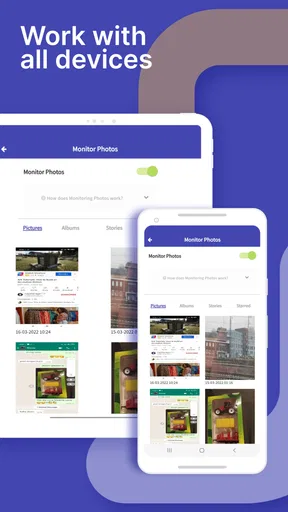
What's impressive is the level of customization available. You can set different rules for weekdays versus weekends, which lets you be more lenient during leisure time without compromising on school days. The app also supports multiple devices, so you're not limited if your kid hops between a tablet and a smartphone.
Compared with relying only on a device’s built-in screen-time settings, Screen Time brings several parental tools together, including reports, a pause option and location tracking. That broader approach may suit a parent who wants a central routine across a child’s devices. On the other hand, if the only goal is to set a simple daily limit on one device, built-in controls may be enough and could feel less involved. I would choose the lighter option when a family does not need the extra oversight, and consider Screen Time when several needs—limits, app use and location awareness—belong in the same household plan.
Notifications are another area where the app shines. You receive instant alerts if any app or website is blocked, or if your child tries to change settings. It keeps you in the loop without being intrusive.
Alerts are most useful when they lead to an action a parent actually needs to take. If every notification prompts an immediate response, the app can pull a parent into constant checking and make monitoring feel more intense than intended. I would decide in advance which alerts require attention and which are simply information, then use the app as a background aid rather than keeping it open all day.
Where the trade-offs matter
Parental controls always involve a balance between safety and a child’s growing independence. Location tracking can reassure a parent, but it should be discussed openly so the child understands when and why it is being used. For an older teenager whose main need is learning self-management, a collaborative agreement and occasional check-ins may be more appropriate than tight restrictions. Screen Time is less suitable for families who want no monitoring at all or who expect an app to resolve disagreements about device use by itself.
There is also a practical cost question. The app is free to download, but some items are available as in-app purchases, so I would check what is included before building a family routine around a paid option. With an average rating of 3.1, I would also test the setup carefully on the devices the child actually uses and confirm that the rules behave as the family expects before depending on them for an important routine. A brief trial run during an ordinary week is more informative than switching on every restriction at once.
Final Thoughts
In the grand scheme of things, Screen Time - Parental Control is a comprehensive tool for any parent looking to manage their child's screen time effectively. It’s packed with features that are both practical and easy to use. While no app can replace good old parenting, this one certainly makes the job a whole lot easier.
Whether you're dealing with a tech-savvy teenager or a younger child who just loves their tablet time a bit too much, this app offers a structured way to bring balance. So, if you’re on the fence about trying it out, I’d say go for the free trial and see how it fits into your family’s routine.
After all, in a world where screens are everywhere, having a little control can make a big difference.
Verdict
Strengths of Screen Time - Parental Control
- Easy setup and user-friendly interface.
- Customizable time limits for each app.
- Real-time location tracking feature.
- Daily activity summary reports.
- Remote device locking capability.
Limitations of Screen Time - Parental Control
- Limited features in free version.
- Some features require stable internet.
- May slow down older devices.
- Notifications can be overwhelming.
- Occasional sync delays reported.
Similar Picks in This Category
View All
Family Space
Motorola Mobility LLC.3.9

شرطة الأطفال - مكالمة وهمية
Oub Apps4.1

Findmykids: Parental Control
LETEM LTD4.6

Pregnancy + | Tracker App
Philips Electronics UK Limited4.8

Policía de niños - para padres
Kids police4.7

Pregnancy App
Amila4.9
Frequently Asked Questions
What features does Screen Time - Parental Control offer?
Screen Time - Parental Control provides a comprehensive set of features for monitoring and managing your child’s device usage. It includes app blocking, time limits, daily schedules, and detailed usage reports. Parents can also set tasks for kids to complete in exchange for extra screen time, ensuring a balanced digital lifestyle.
Is Screen Time - Parental Control compatible with both Android and iOS devices?
Yes, Screen Time - Parental Control is available for both Android and iOS platforms. This ensures that parents can manage devices across both operating systems seamlessly. The app provides similar features on both platforms, offering consistent functionality regardless of the device type.
How secure is my child’s data with Screen Time - Parental Control?
Screen Time - Parental Control prioritizes user privacy and data security. The app uses encryption to protect personal information and complies with industry standards to ensure data safety. Parents can be assured that their child’s data is handled with care and is not shared with third parties without consent.
Can I manage multiple devices with one Screen Time account?
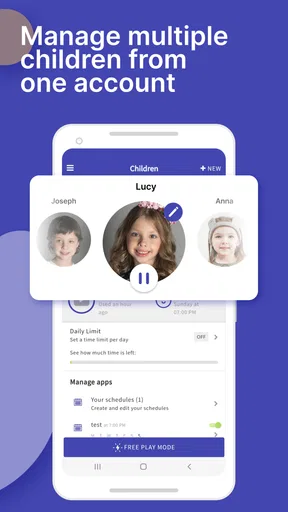
Yes, Screen Time allows parents to manage multiple devices from a single account. This makes it convenient for families with several children, as parents can monitor and control all connected devices without needing separate accounts for each child, streamlining the management process.
Are there any in-app purchases or subscription fees for Screen Time?
Screen Time offers a free version with basic functionalities, but for more advanced features, such as detailed reports and additional controls, a subscription is required. The premium version provides a more comprehensive experience, allowing parents to unlock the full potential of the app to better manage their children’s screen time.
